Day 13: GroupBy, Aggregation & Pivot Tables
✅ Today you will learn
- Split → apply → combine
- groupby with sum, mean, count, nunique
- Named aggregations with agg()
- transform for “share of group”
- pivot_table and crosstab like Excel
🏢 In the real world
Every Monday a regional manager asks for “revenue, orders and average bill by region and category, plus each city’s share of its region”. With groupby and pivot_table this weekly report takes 10 lines instead of an afternoon in Excel.
Split → apply → combine
import pandas as pd
sales = pd.read_csv("sales_data.csv")
sales["revenue"] = sales["quantity"] * sales["unit_price"] * (1 - sales["discount"])
print(sales.groupby("region")["revenue"].sum().round())
print(sales.groupby("category")["rating"].mean().round(2).sort_values())Several statistics at once
import pandas as pd
sales = pd.read_csv("sales_data.csv")
sales["revenue"] = sales["quantity"] * sales["unit_price"] * (1 - sales["discount"])
report = sales.groupby("region").agg(
    orders=("order_id", "count"),
    cities=("city", "nunique"),
    revenue=("revenue", "sum"),
    avg_bill=("revenue", "mean"),
    avg_rating=("rating", "mean"),
).round(1).sort_values("revenue", ascending=False)
print(report)import pandas as pd
sales = pd.read_csv("sales_data.csv")
sales["revenue"] = sales["quantity"] * sales["unit_price"] * (1 - sales["discount"])
two = sales.groupby(["region", "category"])["revenue"].sum().round()
print(two.head(7))
print(two.unstack().fillna(0).astype(int)) # long -> widetransform – keep every row
agg returns one row per group. transform returns a value for every original row, so you can compare each row with its group.
import pandas as pd
sales = pd.read_csv("sales_data.csv")
sales["revenue"] = sales["quantity"] * sales["unit_price"] * (1 - sales["discount"])
city = sales.groupby(["region", "city"], as_index=False)["revenue"].sum()
city["share_of_region_%"] = (city["revenue"] / city.groupby("region")["revenue"].transform("sum") * 100).round(1)
print(city.sort_values(["region", "share_of_region_%"], ascending=[True, False]).to_string(index=False))import pandas as pd
st = pd.read_csv("students_performance.csv")
st["school_avg"] = st.groupby("school_type")["maths"].transform("mean").round(1)
st["above_school_avg"] = st["maths"] > st["school_avg"]
print(st[["student_id", "school_type", "maths", "school_avg", "above_school_avg"]].head())pivot_table – Excel pivot in one line
import pandas as pd
sales = pd.read_csv("sales_data.csv")
sales["revenue"] = sales["quantity"] * sales["unit_price"] * (1 - sales["discount"])
sales["month"] = pd.to_datetime(sales["order_date"]).dt.month
pv = pd.pivot_table(sales, index="category", columns="region", values="revenue",
                    aggfunc="sum", margins=True, margins_name="Total").round(-2)
print((pv / 1000).round(1)) # in ₹ thousandimport pandas as pd
import matplotlib.pyplot as plt
sales = pd.read_csv("sales_data.csv")
sales["revenue"] = sales["quantity"] * sales["unit_price"] * (1 - sales["discount"])
pv = pd.pivot_table(sales, index="category", columns="region", values="revenue", aggfunc="sum") / 100000
pv.plot(kind="bar", figsize=(9, 4.6))
plt.title("Revenue by category and region (₹ lakh)")
plt.ylabel("₹ lakh"); plt.xticks(rotation=0)
plt.show()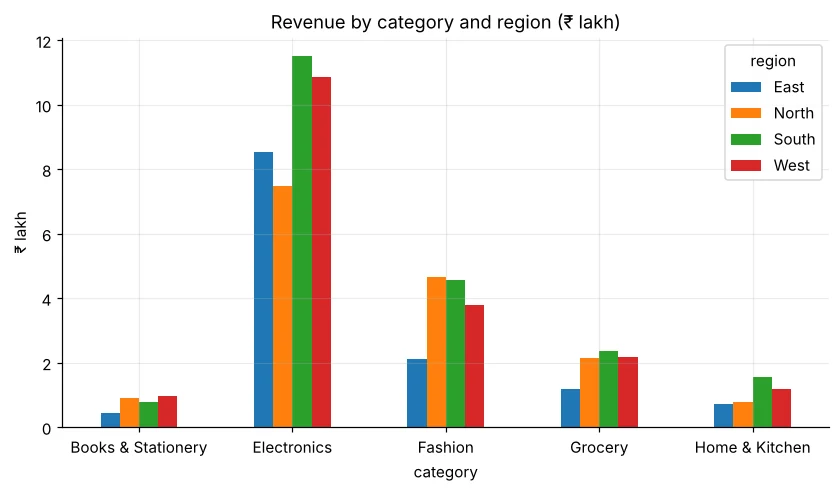
crosstab – counts and percentages
import pandas as pd
sales = pd.read_csv("sales_data.csv")
print(pd.crosstab(sales["region"], sales["payment_mode"]))
print((pd.crosstab(sales["region"], sales["payment_mode"], normalize="index") * 100).round(1))Look at the Cash-on-Delivery share by region. A region with high COD has more returns and cash-handling cost – the business might offer a UPI cashback there.
Real example: Monday sales report
import pandas as pd
sales = pd.read_csv("sales_data.csv", parse_dates=["order_date"])
sales["revenue"] = sales["quantity"] * sales["unit_price"] * (1 - sales["discount"])
sales["quarter"] = "Q" + sales["order_date"].dt.quarter.astype(str)
q = sales.groupby("quarter").agg(orders=("order_id", "count"), revenue=("revenue", "sum"))
q["growth_%"] = (q["revenue"].pct_change() * 100).round(1)
q["revenue"] = (q["revenue"] / 1e5).round(2)
print(q.rename(columns={"revenue": "revenue_lakh"}))
top = (sales.groupby(["quarter", "product"])["revenue"].sum().reset_index()
            .sort_values("revenue", ascending=False).groupby("quarter").head(1))
print(top.sort_values("quarter").to_string(index=False))🏅 Job skills unlocked today
Practice tasks
🏋️ Practice – do it yourself
Show solution
import pandas as pd
h = pd.read_csv("house_prices.csv")
print(pd.pivot_table(h, index="city", columns="furnishing", values="price_lakh", aggfunc="mean").round(1))Show solution
import pandas as pd
t = pd.read_csv("telecom_churn.csv")
t["churned"] = (t["churn"] == "Yes").astype(int)
print((t.pivot_table(index="contract", columns="internet_service", values="churned", aggfunc="mean") * 100).round(1))Show solution
import pandas as pd
st = pd.read_csv("students_performance.csv")
st["top"] = st["average"] >= 75
print((st.groupby("school_type")["top"].mean() * 100).round(1))
print(st.groupby(["school_type", "top"])["study_hours"].mean().round(2).unstack())Quick quiz
🧠 Quick Quiz – test yourself
Interview corner
💼 Interview Corner
What is the difference between agg, apply and transform in groupby?
agg returns one row per group (reductions like sum, mean). transform returns a result aligned with the original rows (e.g. group mean on every row). apply is the most flexible – any function per group – but the slowest.
How is pivot_table different from pivot?
pivot only reshapes and fails if an index/column pair appears twice. pivot_table aggregates duplicates with aggfunc (mean by default) and can add totals with margins.
Summary
- groupby = split → apply → combine.
- agg with named outputs builds clean report tables.
- transform keeps every row – perfect for shares and comparisons.
- pivot_table and crosstab reproduce Excel pivots in one line.
Day 14: combine tables with merge, join and concat – like SQL joins inside pandas.
