Day 21: Matplotlib: Line, Bar, Scatter, Subplots
✅ Today you will learn
- Figure and Axes – the object-oriented way
- Choose the right chart for the question
- Titles, labels, colours, annotations
- Subplots: a mini dashboard in one figure
- Save charts for reports (PNG, 150+ dpi)
🏢 In the real world
A manager will look at your chart for 5 seconds. In that time it must answer one question clearly – “Are sales rising?”, “Which city is best?” – without explanation. Matplotlib gives you full control to make that happen.
Which chart for which question?
Figure and Axes
A Figure is the whole image; an Axes is one chart inside it. Always use fig, ax = plt.subplots() and call methods on ax – it scales cleanly to many charts.
import matplotlib.pyplot as plt
months = ["Jan", "Feb", "Mar", "Apr", "May", "Jun"]
sales_2023 = [4.1, 3.8, 4.6, 4.9, 5.3, 5.0]
sales_2024 = [4.8, 4.4, 5.2, 5.9, 6.4, 6.1]
fig, ax = plt.subplots(figsize=(8, 4))
ax.plot(months, sales_2023, marker="o", color="#94a3b8", label="2023")
ax.plot(months, sales_2024, marker="o", color="#4f46e5", lw=2.5, label="2024")
ax.set_title("Monthly sales (₹ lakh): 2024 is ahead every month")
ax.set_xlabel("Month"); ax.set_ylabel("₹ lakh"); ax.legend()
ax.annotate("Best month", xy=(4, 6.4), xytext=(2.4, 6.15), arrowprops=dict(arrowstyle="->"))
plt.show()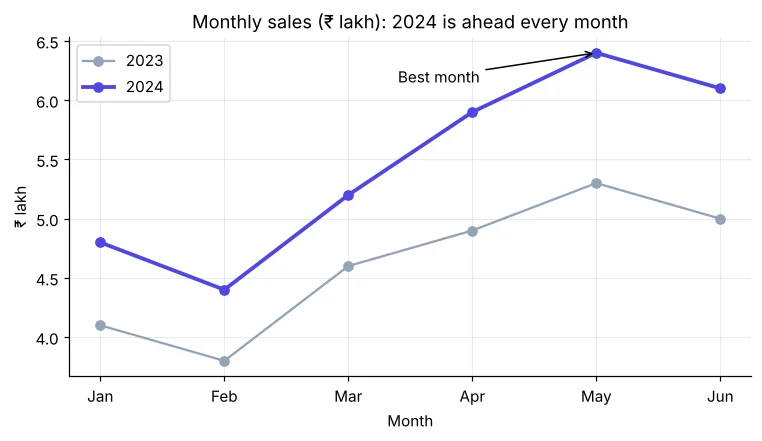
Bar charts
import pandas as pd
import matplotlib.pyplot as plt
s = pd.read_csv("sales_data.csv")
s["revenue"] = s["quantity"] * s["unit_price"] * (1 - s["discount"])
city = (s.groupby("city")["revenue"].sum() / 1e5).sort_values()
colors = ["#4f46e5" if v == city.max() else "#c7d2fe" for v in city]
fig, ax = plt.subplots(figsize=(8, 4.5))
bars = ax.barh(city.index, city.values, color=colors)
ax.bar_label(bars, fmt="%.1f", padding=3, fontsize=8)
ax.set_title("Mumbai leads revenue (₹ lakh, 2024)"); ax.set_xlabel("₹ lakh")
ax.spines[["top", "right"]].set_visible(False)
plt.show()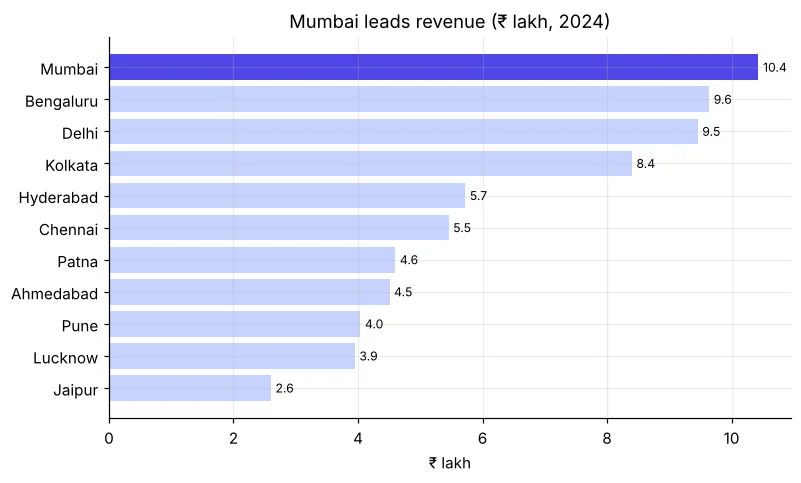
import pandas as pd
import numpy as np
import matplotlib.pyplot as plt
s = pd.read_csv("sales_data.csv")
pv = pd.crosstab(s["category"], s["customer_gender"])
x = np.arange(len(pv)); w = 0.38
fig, ax = plt.subplots(figsize=(9, 4))
ax.bar(x - w / 2, pv["Female"], w, label="Female", color="#ec4899")
ax.bar(x + w / 2, pv["Male"], w, label="Male", color="#3b82f6")
ax.set_xticks(x, pv.index, rotation=10); ax.set_ylabel("Orders"); ax.legend()
ax.set_title("Orders by category and gender")
plt.show()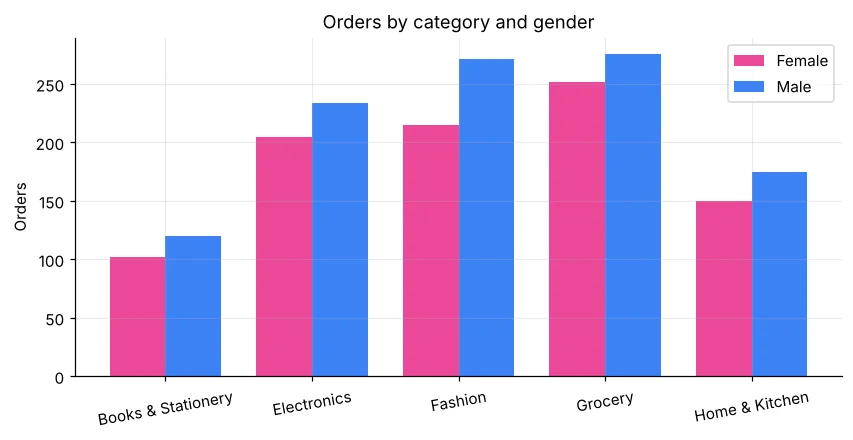
Scatter and histogram
import pandas as pd
import matplotlib.pyplot as plt
h = pd.read_csv("house_prices.csv")
fig, ax = plt.subplots(1, 2, figsize=(11, 4))
for city, color in [("Bengaluru", "#4f46e5"), ("Lucknow", "#f59e0b")]:
    d = h[h["city"] == city]
    ax[0].scatter(d["area_sqft"], d["price_lakh"], s=14, alpha=0.6, color=color, label=city)
ax[0].set_xlabel("Area (sqft)"); ax[0].set_ylabel("₹ lakh"); ax[0].legend(); ax[0].set_title("Same area, different city price")
s = pd.read_csv("sales_data.csv")
ax[1].hist(s["customer_age"].dropna(), bins=20, color="#0891b2", edgecolor="white")
ax[1].axvline(s["customer_age"].median(), color="#dc2626", ls="--", label="median")
ax[1].set_title("Customer age distribution"); ax[1].set_xlabel("Age"); ax[1].legend()
plt.tight_layout(); plt.show()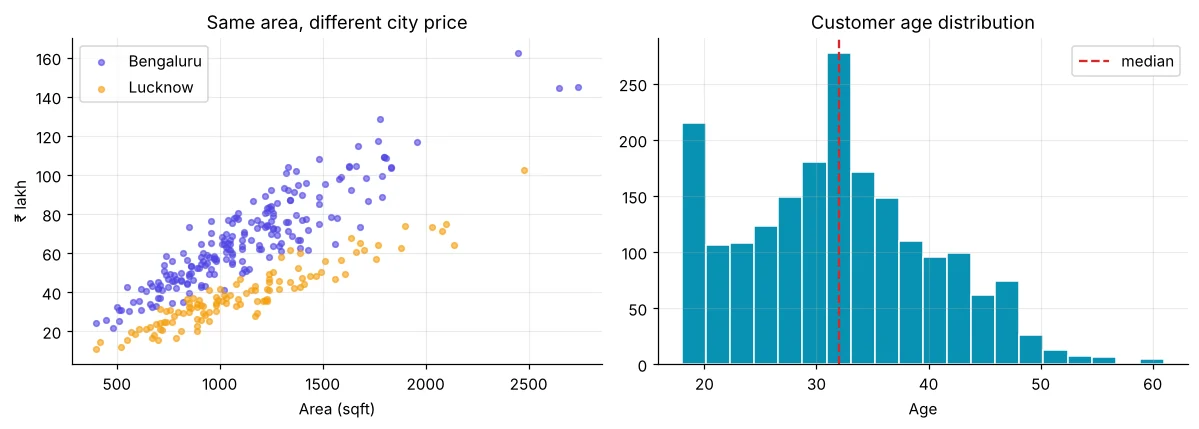
Subplots: a mini dashboard
import pandas as pd
import matplotlib.pyplot as plt
s = pd.read_csv("sales_data.csv", parse_dates=["order_date"])
s["revenue"] = s["quantity"] * s["unit_price"] * (1 - s["discount"])
fig, ax = plt.subplots(2, 2, figsize=(11, 7))
m = s.groupby(s["order_date"].dt.month)["revenue"].sum() / 1e5
ax[0, 0].plot(m.index, m.values, marker="o", color="#4f46e5"); ax[0, 0].set_title("Revenue by month (₹ lakh)")
c = s.groupby("category")["revenue"].sum().sort_values()
ax[0, 1].barh(c.index, c / 1e5, color="#0891b2"); ax[0, 1].set_title("Revenue by category")
p = s["payment_mode"].value_counts()
ax[1, 0].pie(p, labels=p.index, autopct="%1.0f%%", wedgeprops=dict(width=0.45)); ax[1, 0].set_title("Payment mode")
ax[1, 1].hist(s["rating"].dropna(), bins=[1.75, 2.25, 2.75, 3.25, 3.75, 4.25, 4.75, 5.25], color="#16a34a", edgecolor="white"); ax[1, 1].set_title("Ratings")
fig.suptitle("BazaarKart 2024 at a glance", fontsize=15, fontweight="bold")
plt.tight_layout(); plt.savefig("dashboard.png", dpi=150); plt.show()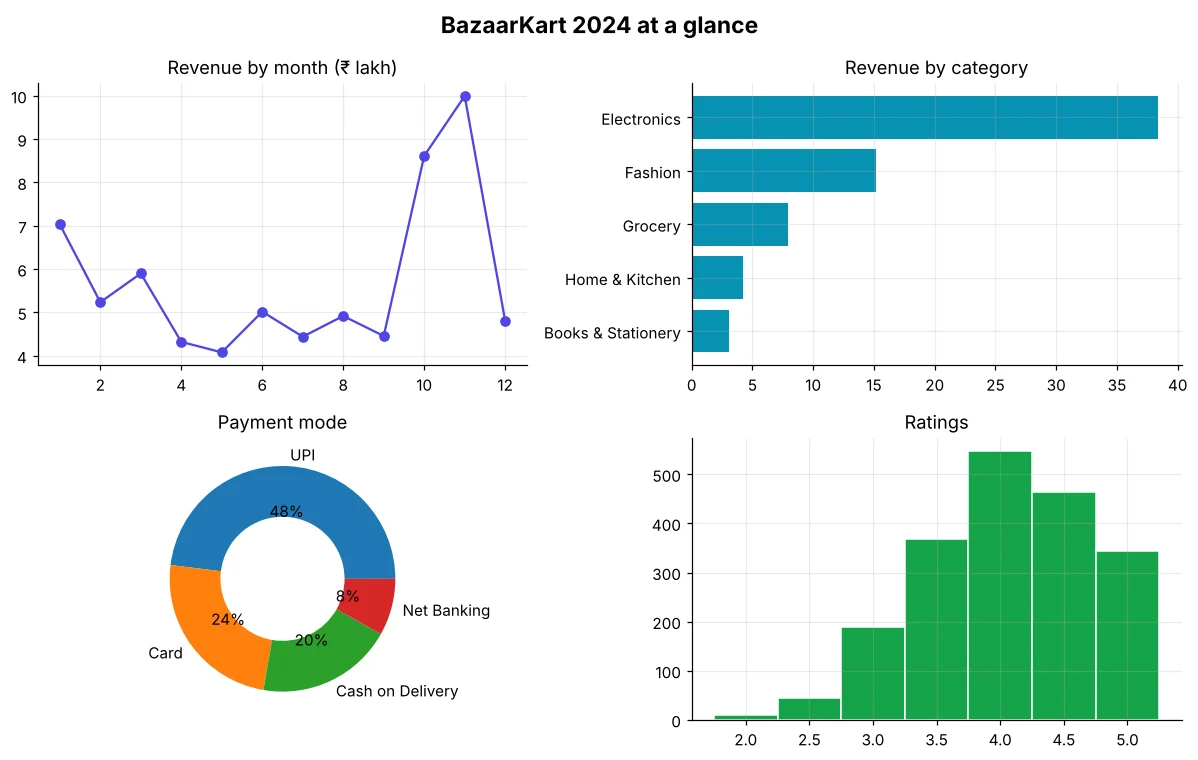
7 rules for professional charts
- The title states the insight, not just the topic.
- Label axes with units (₹ lakh, %, days).
- Sort bars by value.
- Use one highlight colour; grey for the rest.
- Start bar axes at zero.
- Avoid 3D and pies with more than 5 slices.
- Remove clutter: top/right borders, heavy grids.
🏅 Job skills unlocked today
Practice tasks
🏋️ Practice – do it yourself
ax.axvspan.Show solution
import pandas as pd
import matplotlib.pyplot as plt
w = pd.read_csv("delhi_weather.csv", parse_dates=["date"])
t = w[w["date"].dt.year == 2024].groupby(w["date"].dt.month)["avg_temp_c"].mean()
fig, ax = plt.subplots(figsize=(8, 3.5))
ax.plot(t.index, t.values, marker="o", color="#dc2626")
ax.axvspan(4, 6, color="#fde68a", alpha=0.5, label="Summer")
ax.set_title("Delhi 2024: hottest in May–June"); ax.set_xlabel("Month"); ax.set_ylabel("°C"); ax.legend()
plt.show()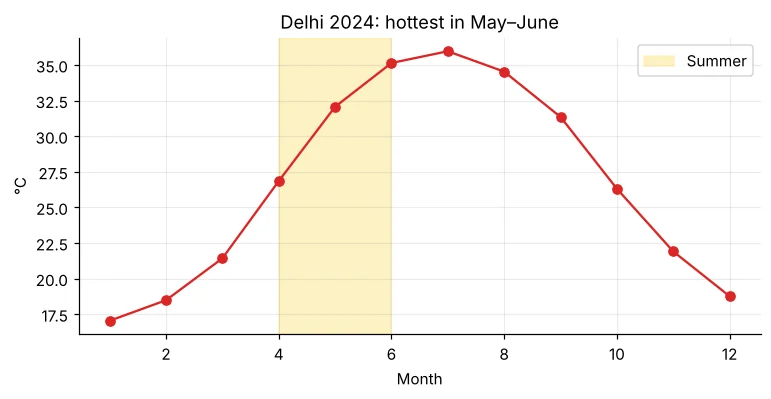
Show solution
import pandas as pd
import matplotlib.pyplot as plt
t = pd.read_csv("telecom_churn.csv")
r = (t.groupby("contract")["churn"].apply(lambda c: (c == "Yes").mean()) * 100).sort_values()
fig, ax = plt.subplots(figsize=(7, 3))
ax.barh(r.index, r.values, color=["#dc2626" if v == r.max() else "#cbd5e1" for v in r])
ax.set_title("Monthly contracts churn the most (%)"); ax.set_xlabel("Churn %")
plt.show()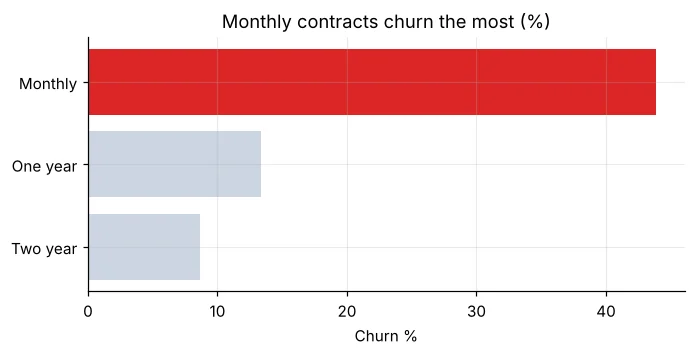
students_performance.csv: histogram of average, bar of mean score by school type, scatter of study hours vs average, pie of internet access.Quick quiz
🧠 Quick Quiz – test yourself
Interview corner
💼 Interview Corner
How do you decide which chart to use?
Start from the question: trend over time → line; compare categories → sorted bar; relationship → scatter; distribution → histogram/box; part of whole with few parts → stacked bar or donut. Then remove clutter and highlight the key point.
Why might a bar chart that does not start at zero be misleading?
Bar length encodes the value. Cutting the axis exaggerates small differences – a 2% gap can look like 50%.
Summary
- fig, ax = plt.subplots() → ax.plot / bar / barh / scatter / hist / pie.
- Title = insight, labels with units, sort, highlight one thing.
- Subplots build mini dashboards; savefig(dpi=150) before show().
Day 22: Seaborn – beautiful statistical plots (box, violin, heatmap, pairplot) in one line each.
