Free tutorials & notes in Hindi & English · Clean code examples 🧰 मुफ़्त PDF और फ़ोटो टूल्स →
📊 Week 4 – Visualisation और Storytelling  ·  दिन 21

दिन 21: Matplotlib: Line, Bar, Scatter, Subplots

⏱ 2 hours📶 Beginner → Intermediate🎯 100% self-study
दिन 21 / 60

✅ आज आप सीखेंगे

  • Figure और Axes – object-oriented तरीका
  • सवाल के हिसाब से सही chart चुनना
  • Titles, labels, colours, annotations
  • Subplots: एक figure में mini dashboard
  • Reports के लिए charts save करना (PNG, 150+ dpi)

🏢 असली दुनिया में

Manager आपका chart 5 सेकंड देखेगा। उतने में उसे एक सवाल साफ़ जवाब देना होगा – “Sales बढ़ रही है?”, “कौन सा शहर सबसे अच्छा?” – बिना समझाए। Matplotlib इसके लिए आपको पूरा control देता है।

कौन सा chart किस सवाल के लिए?

📈
Lineसमय के साथ बदलाव – monthly sales, temperature।
📊
BarCategories की तुलना – शहर के हिसाब से revenue।
🔵
Scatterदो numbers का रिश्ता – area vs price।
📶
Histogramएक number का फैलाव – customer ages।
🥧
Pie / donutपूरे का हिस्सा, ज़्यादा से ज़्यादा 5 भाग।
सवाल से chart चुनें

Figure और Axes

Figure पूरी image है; Axes उसके अंदर एक chart। हमेशा fig, ax = plt.subplots() लिखें और ax पर methods call करें – यह कई charts तक आसानी से बढ़ता है।

Python
import matplotlib.pyplot as plt
months = ["Jan", "Feb", "Mar", "Apr", "May", "Jun"]
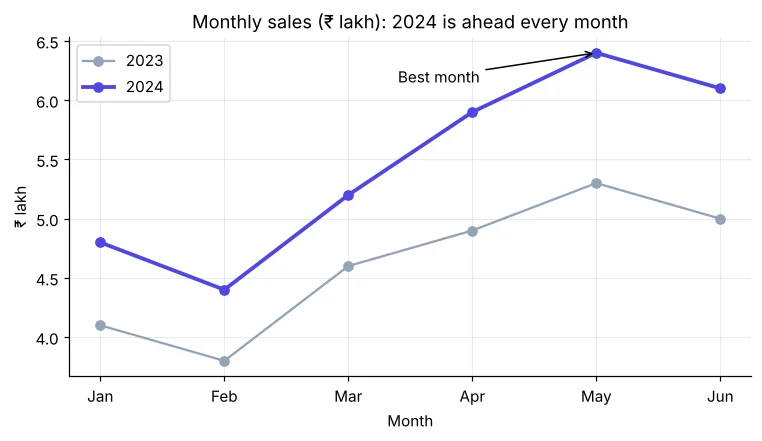
sales_2023 = [4.1, 3.8, 4.6, 4.9, 5.3, 5.0]
sales_2024 = [4.8, 4.4, 5.2, 5.9, 6.4, 6.1]
fig, ax = plt.subplots(figsize=(8, 4))
ax.plot(months, sales_2023, marker="o", color="#94a3b8", label="2023")
ax.plot(months, sales_2024, marker="o", color="#4f46e5", lw=2.5, label="2024")
ax.set_title("Monthly sales (₹ lakh): 2024 is ahead every month")
ax.set_xlabel("Month"); ax.set_ylabel("₹ lakh"); ax.legend()
ax.annotate("Best month", xy=(4, 6.4), xytext=(2.4, 6.15), arrowprops=dict(arrowstyle="->"))
plt.show()
2023 और 2024 की monthly sales की तुलना वाला line chart
पुराने के लिए grey, “अभी” के लिए गहरा रंग, और title जो निष्कर्ष बताए।

Bar charts

Python
import pandas as pd
import matplotlib.pyplot as plt
s = pd.read_csv("sales_data.csv")
s["revenue"] = s["quantity"] * s["unit_price"] * (1 - s["discount"])
city = (s.groupby("city")["revenue"].sum() / 1e5).sort_values()
colors = ["#4f46e5" if v == city.max() else "#c7d2fe" for v in city]
fig, ax = plt.subplots(figsize=(8, 4.5))
bars = ax.barh(city.index, city.values, color=colors)
ax.bar_label(bars, fmt="%.1f", padding=3, fontsize=8)
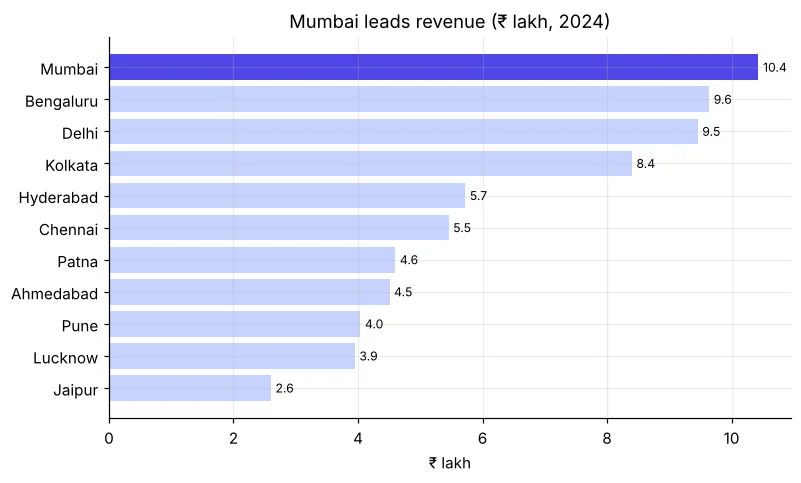
ax.set_title("Mumbai leads revenue (₹ lakh, 2024)"); ax.set_xlabel("₹ lakh")
ax.spines[["top", "right"]].set_visible(False)
plt.show()
शहर के हिसाब से revenue का horizontal bar chart, Mumbai highlighted
Sorted bars + एक highlight रंग = एक नज़र में जवाब।
Python
import pandas as pd
import numpy as np
import matplotlib.pyplot as plt
s = pd.read_csv("sales_data.csv")
pv = pd.crosstab(s["category"], s["customer_gender"])
x = np.arange(len(pv)); w = 0.38
fig, ax = plt.subplots(figsize=(9, 4))
ax.bar(x - w / 2, pv["Female"], w, label="Female", color="#ec4899")
ax.bar(x + w / 2, pv["Male"], w, label="Male", color="#3b82f6")
ax.set_xticks(x, pv.index, rotation=10); ax.set_ylabel("Orders"); ax.legend()
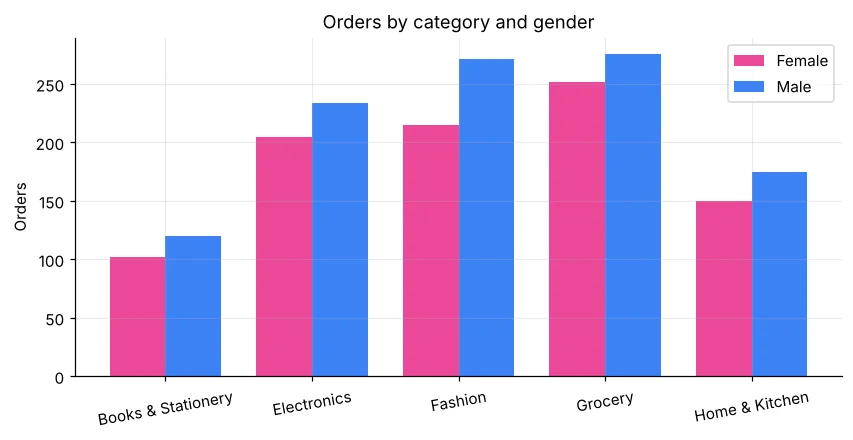
ax.set_title("Orders by category and gender")
plt.show()
Category और gender के हिसाब से orders का grouped bar chart
Grouped bars हर category के अंदर दो groups की तुलना करते हैं।

Scatter और histogram

Python
import pandas as pd
import matplotlib.pyplot as plt
h = pd.read_csv("house_prices.csv")
fig, ax = plt.subplots(1, 2, figsize=(11, 4))
for city, color in [("Bengaluru", "#4f46e5"), ("Lucknow", "#f59e0b")]:
    d = h[h["city"] == city]
    ax[0].scatter(d["area_sqft"], d["price_lakh"], s=14, alpha=0.6, color=color, label=city)
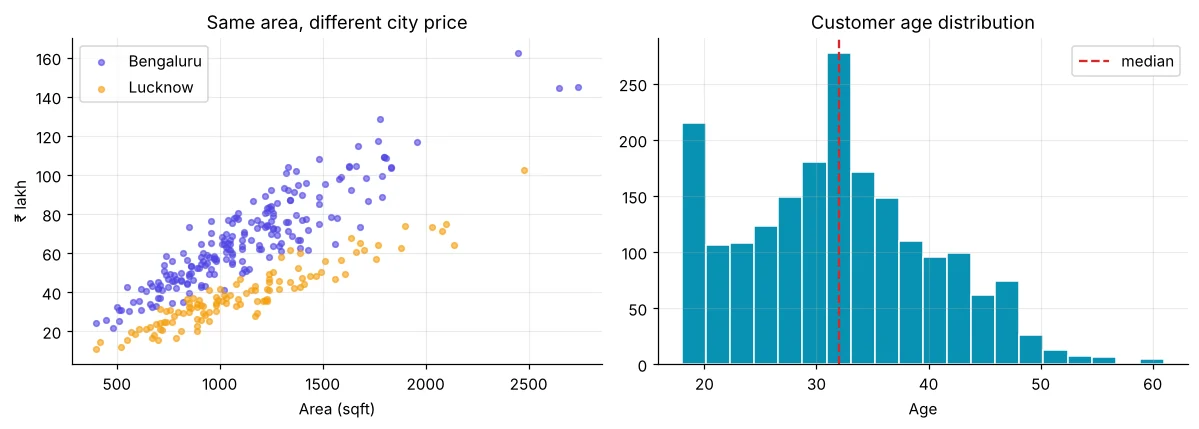
ax[0].set_xlabel("Area (sqft)"); ax[0].set_ylabel("₹ lakh"); ax[0].legend(); ax[0].set_title("Same area, different city price")
s = pd.read_csv("sales_data.csv")
ax[1].hist(s["customer_age"].dropna(), bins=20, color="#0891b2", edgecolor="white")
ax[1].axvline(s["customer_age"].median(), color="#dc2626", ls="--", label="median")
ax[1].set_title("Customer age distribution"); ax[1].set_xlabel("Age"); ax[1].legend()
plt.tight_layout(); plt.show()
दो शहरों के area vs price का scatter और customer ages का histogram
Scatter में group के हिसाब से रंग; histogram पर median दिखाएँ।

Subplots: mini dashboard

Python
import pandas as pd
import matplotlib.pyplot as plt
s = pd.read_csv("sales_data.csv", parse_dates=["order_date"])
s["revenue"] = s["quantity"] * s["unit_price"] * (1 - s["discount"])
fig, ax = plt.subplots(2, 2, figsize=(11, 7))
m = s.groupby(s["order_date"].dt.month)["revenue"].sum() / 1e5
ax[0, 0].plot(m.index, m.values, marker="o", color="#4f46e5"); ax[0, 0].set_title("Revenue by month (₹ lakh)")
c = s.groupby("category")["revenue"].sum().sort_values()
ax[0, 1].barh(c.index, c / 1e5, color="#0891b2"); ax[0, 1].set_title("Revenue by category")
p = s["payment_mode"].value_counts()
ax[1, 0].pie(p, labels=p.index, autopct="%1.0f%%", wedgeprops=dict(width=0.45)); ax[1, 0].set_title("Payment mode")
ax[1, 1].hist(s["rating"].dropna(), bins=[1.75, 2.25, 2.75, 3.25, 3.75, 4.25, 4.75, 5.25], color="#16a34a", edgecolor="white"); ax[1, 1].set_title("Ratings")
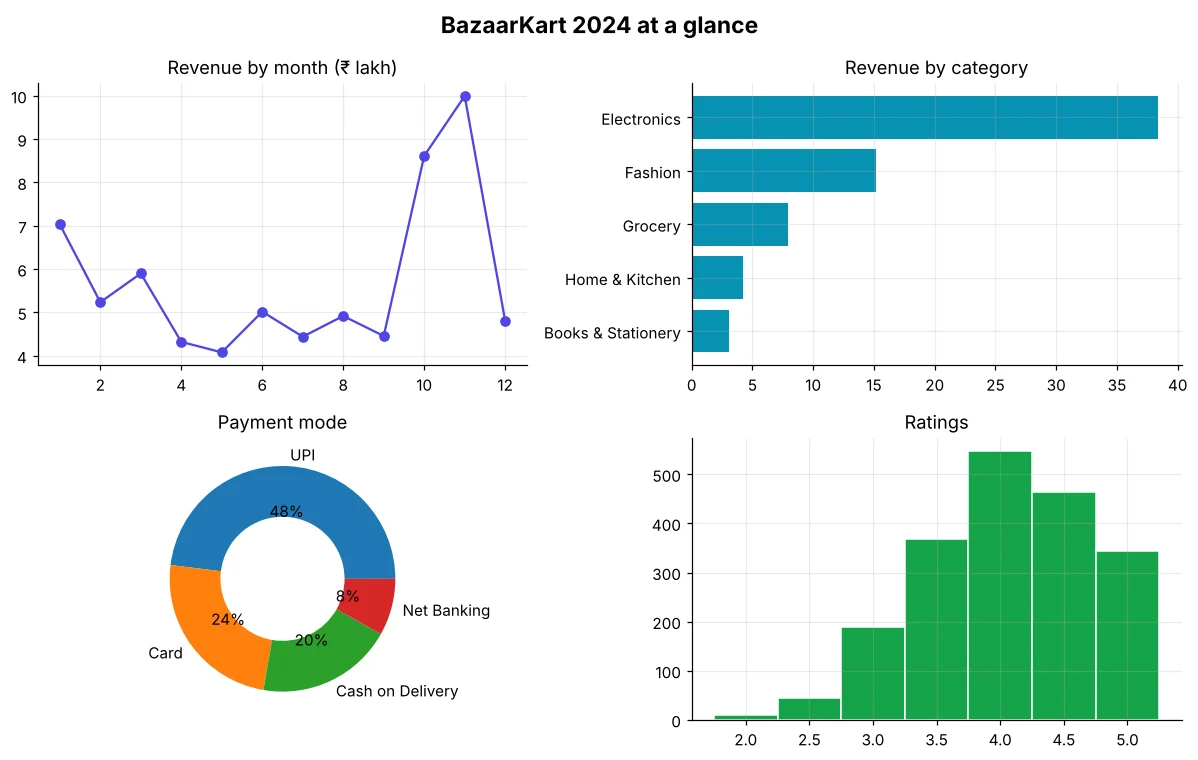
fig.suptitle("BazaarKart 2024 at a glance", fontsize=15, fontweight="bold")
plt.tight_layout(); plt.savefig("dashboard.png", dpi=150); plt.show()
Monthly revenue, category, payment mode और ratings वाला चार-panel dashboard
plt.savefig("dashboard.png", dpi=150) इसे report या slide के लिए save करता है।

Professional charts के 7 नियम

  1. Title insight बताए, सिर्फ़ topic नहीं।
  2. Axes पर units के साथ label (₹ lakh, %, दिन)।
  3. Bars को value से sort करें।
  4. एक highlight रंग; बाकी grey।
  5. Bar axes शून्य से शुरू करें।
  6. 3D और 5 से ज़्यादा हिस्सों वाले pie से बचें।
  7. फ़ालतू चीज़ें हटाएँ: ऊपर/दाएँ borders, भारी grids।

🏅 आज के Job Skills

✔ fig, ax = plt.subplots() का इस्तेमाल✔ line, bar, scatter, hist, pie चुनना और बनाना✔ Annotate और highlight करना✔ Multi-panel figures बनाकर save करना

Practice tasks

🏋️ Practice – ख़ुद करें

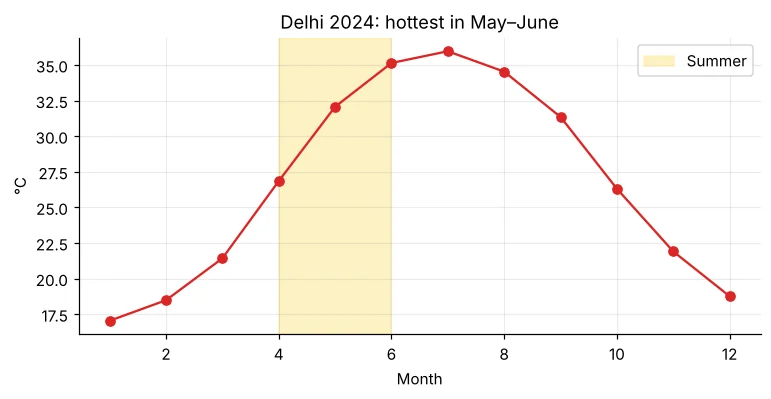
Task 1: Delhi के 2024 के monthly average temperature का line chart बनाएँ और गर्मी के महीने (Apr–Jun) ax.axvspan से shade करें।
Solution देखें
Python
import pandas as pd
import matplotlib.pyplot as plt
w = pd.read_csv("delhi_weather.csv", parse_dates=["date"])
t = w[w["date"].dt.year == 2024].groupby(w["date"].dt.month)["avg_temp_c"].mean()
fig, ax = plt.subplots(figsize=(8, 3.5))
ax.plot(t.index, t.values, marker="o", color="#dc2626")
ax.axvspan(4, 6, color="#fde68a", alpha=0.5, label="Summer")
ax.set_title("Delhi 2024: hottest in May–June"); ax.set_xlabel("Month"); ax.set_ylabel("°C"); ax.legend()
plt.show()
Delhi का 2024 monthly temperature, गर्मी shaded
Program का output
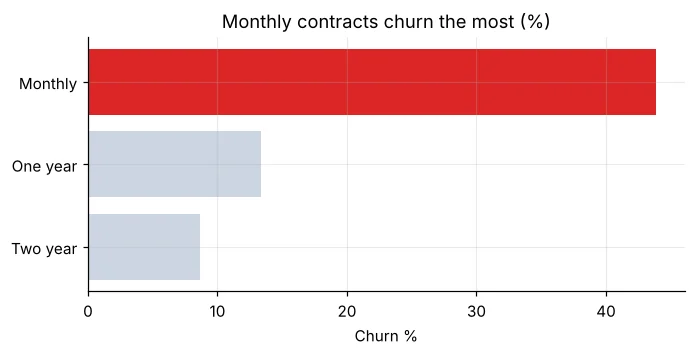
Task 2: Telecom data से contract type के हिसाब से churn rate का horizontal bar chart बनाएँ, सबसे बुरे को लाल रंग में।
Solution देखें
Python
import pandas as pd
import matplotlib.pyplot as plt
t = pd.read_csv("telecom_churn.csv")
r = (t.groupby("contract")["churn"].apply(lambda c: (c == "Yes").mean()) * 100).sort_values()
fig, ax = plt.subplots(figsize=(7, 3))
ax.barh(r.index, r.values, color=["#dc2626" if v == r.max() else "#cbd5e1" for v in r])
ax.set_title("Monthly contracts churn the most (%)"); ax.set_xlabel("Churn %")
plt.show()
Contract type के हिसाब से churn rate bar chart
Program का output
Task 3: students_performance.csv के लिए 2×2 dashboard बनाएँ: average का histogram, school type के हिसाब से mean score का bar, study hours vs average का scatter, internet access का pie।

Quick quiz

🧠 Quick Quiz – ख़ुद को जाँचें

1. 12 महीनों का revenue दिखाने के लिए सबसे अच्छा chart?
x-axis पर समय → line।
2. fig, ax = plt.subplots(2, 3) क्या बनाता है?
ax 2×3 array है: ax[0, 0] … ax[1, 2]।
3. Bars पर value labels कौन लगाता है?
ax.bar/barh से मिला container दें।
4. अच्छा chart title…
Insight बताएँ।
5. Chart save करने के लिए savefig कब call करें?
show() figure साफ़ कर सकता है, इसलिए पहले save करें।

Interview corner

💼 Interview Corner

कौन सा chart लेना है, कैसे तय करते हैं?

सवाल से शुरू करें: समय के साथ trend → line; categories की तुलना → sorted bar; रिश्ता → scatter; फैलाव → histogram/box; कम हिस्सों वाला पूरे का भाग → stacked bar या donut। फिर फ़ालतू चीज़ें हटाकर मुख्य बात highlight करें।

शून्य से शुरू न होने वाला bar chart भ्रामक क्यों हो सकता है?

Bar की लंबाई value दिखाती है। Axis काटने से छोटे अंतर बड़े दिखते हैं – 2% का अंतर 50% जैसा लग सकता है।
सारांश

  • fig, ax = plt.subplots() → ax.plot / bar / barh / scatter / hist / pie।
  • Title = insight, units के साथ labels, sort, एक चीज़ highlight।
  • Subplots से mini dashboards; show() से पहले savefig(dpi=150)।
➡️ आगे

Day 22: Seaborn – सुंदर statistical plots (box, violin, heatmap, pairplot) हर एक, एक line में।

अक्सर पूछे जाने वाले प्रश्न (FAQ)

plt.plot या ax.plot?
plt.* जल्दी के एक chart के लिए ठीक है। ax.* ज़्यादा साफ़ है और subplots में ज़रूरी – इसे default सीखें।
₹ चिह्न कैसे दिखाएँ?
String में लिख दें: "₹ lakh"। ज़्यादातर नए fonts इसे support करते हैं; box दिखे तो "DejaVu Sans" जैसा font set करें।
← Data Science (60 Days)
🔗

Share this topic with a friend

यह topic किसी दोस्त को भेजें

Found it useful? Send it to a classmate learning the same thing.

अच्छा लगा? जो दोस्त यही सीख रहा है, उसे भेज दीजिए।

अगला topicदिन 22: Seaborn: Distributions और Heatmaps आपकी प्रगति: 21 / 60 (35%) · Lesson 22 / 60 आगे बढ़ें →

यह lesson कैसा लगा?

आपकी राय से हम content और बेहतर बनाते हैं।

अपना review और सुझाव लिखें (वैकल्पिक)

Review approve होने के बाद आपका नाम और शहर इसके साथ public दिख सकते हैं। Email या phone न लिखें।

▶ CodingEasily on YouTube

Video से सीखें – आसान Hindi में

चुनी हुई video: RDBMS भाग 3 – Class XI Commerce IT

▶ Channel subscribe करें