दिन 24: Data Storytelling और Dashboards
✅ आज आप सीखेंगे
- कहानी का ढाँचा: context → insight → action
- Audience समझें: CEO vs manager vs analyst
- Chart makeover: फ़ालतू हटाएँ और highlight करें
- KPI cards और एक-पेज dashboard
- ऐसी headlines लिखें जो finding बताएँ
🏢 असली दुनिया में
दो analysts एक ही चीज़ पाते हैं: monthly-contract customers 5× ज़्यादा churn करते हैं। एक 20 charts वाली notebook भेजता है; कोई नहीं पढ़ता। दूसरा एक slide भेजता है: “Monthly plans 44% customers खोते हैं – सबसे ज़्यादा risk वाले 600 customers को ₹100 की छूट साल में लगभग ₹7 lakh जोड़ सकती है।” सोचिए promotion किसे मिलेगा। Storytelling data science का आख़िरी मील है।
कहानी का ढाँचा
| Audience | क्या चाहते हैं | उन्हें क्या दें |
|---|---|---|
| CEO | 1 मिनट में फ़ैसला | एक headline, 3 KPIs, 1 सुझाव |
| Manager | अपनी team में क्या बदलें | Region/product drill-down वाले 3–4 charts |
| Analyst / tech | आपने कैसे किया | Method, assumptions, notebook link |
Chart makeover: पहले और बाद
import pandas as pd
import matplotlib.pyplot as plt
t = pd.read_csv("telecom_churn.csv")
r = (t.groupby("contract")["churn"].apply(lambda c: (c == "Yes").mean()) * 100).round(1)
fig, ax = plt.subplots(1, 2, figsize=(12, 4.2))
# BEFORE: default pie, no message
ax[0].pie(r, labels=r.index, autopct="%1.1f%%", shadow=True, explode=[0.05] * 3)
ax[0].set_title("Churn by contract")
# AFTER: sorted bars, one highlight, insight title, direct labels
r = r.sort_values()
colors = ["#cbd5e1", "#cbd5e1", "#dc2626"]
bars = ax[1].barh(r.index, r.values, color=colors)
ax[1].bar_label(bars, labels=[f"{v:.0f}%" for v in r.values], padding=4, fontsize=11, fontweight="bold")
ax[1].set_title("Monthly-plan customers churn ~5× more than two-year customers", loc="left", fontsize=11)
ax[1].spines[["top", "right", "bottom"]].set_visible(False); ax[1].set_xticks([])
plt.tight_layout(); plt.show()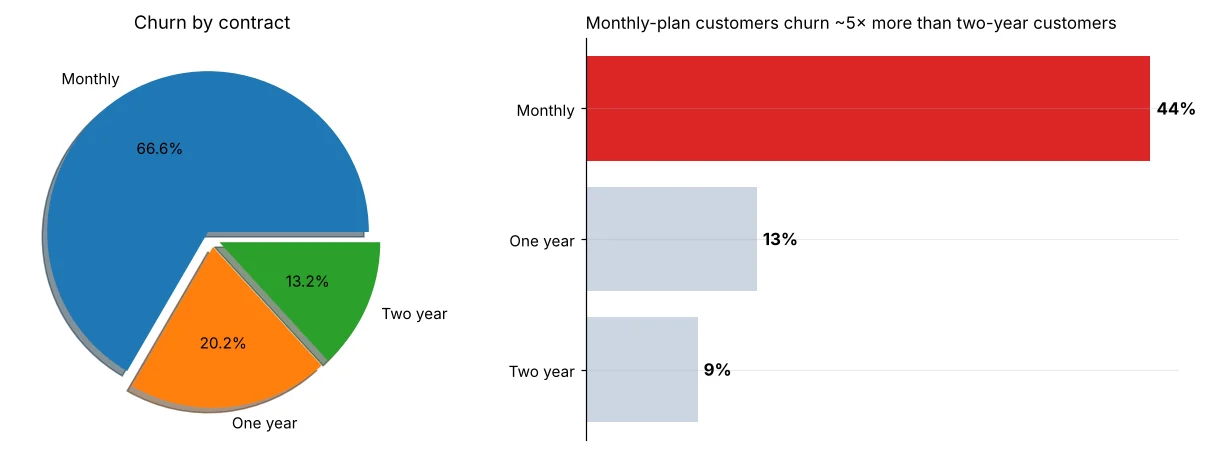
Rates के pie charts; 3D effects; इंद्रधनुषी रंग; “Chart 3” जैसे titles; बहुत ज़्यादा decimals (29.137%); बनाया हर chart दिखाना, बजाय उन तीन के जो मायने रखते हैं।
Insight की rupee value निकालें
import pandas as pd
t = pd.read_csv("telecom_churn.csv")
monthly = t[t["contract"] == "Monthly"]
churners = (monthly["churn"] == "Yes").sum()
avg_bill = monthly["monthly_charges"].mean()
lost_per_year = churners * avg_bill * 12
print(f"Monthly-plan churners: {churners} | avg bill ₹{avg_bill:.0f}")
print(f"Revenue lost per year ≈ ₹{lost_per_year / 1e5:.1f} lakh")
saved = 0.25 * churners                  # assumption: the offer keeps 1 in 4 churners
gain = saved * avg_bill * 12
cost_all = len(monthly) * 100 * 12       # ₹100/month off for EVERY monthly customer
cost_target = 600 * 100 * 12             # only the 600 highest-risk customers (model, Day 58)
print(f"Revenue kept if 25% are saved: ₹{gain / 1e5:.1f} lakh")
print(f"Offer to everyone:  cost ₹{cost_all / 1e5:.1f} lakh → net ₹{(gain - cost_all) / 1e5:+.1f} lakh")
print(f"Offer to top 600: cost ₹{cost_target / 1e5:.1f} lakh → net ₹{(gain - cost_target) / 1e5:+.1f} lakh")ध्यान दें: सबको discount देने से पैसा घटता है, targeted देने से बढ़ता है। 25% save-rate एक assumption है, इसलिए slide पर यह लिखें और पहले छोटा test सुझाएँ (Day 31)। ईमानदार numbers भरोसा बनाते हैं।
एक-पेज dashboard
import pandas as pd
import matplotlib.pyplot as plt
t = pd.read_csv("telecom_churn.csv")
t["churned"] = t["churn"] == "Yes"
fig = plt.figure(figsize=(12, 7.2))
gs = fig.add_gridspec(3, 4, height_ratios=[0.55, 1, 1], hspace=0.55, wspace=0.35)
kpis = [("Customers", f"{len(t):,}"), ("Churn rate", f"{t['churned'].mean() * 100:.1f}%"),
        ("Avg bill", f"₹{t['monthly_charges'].mean():.0f}"), ("Complaints/cust", f"{t['complaints'].mean():.2f}")]
for i, (name, val) in enumerate(kpis):
    a = fig.add_subplot(gs[0, i]); a.axis("off")
    a.add_patch(plt.Rectangle((0, 0), 1, 1, color="#eef2ff", transform=a.transAxes))
    a.text(0.5, 0.62, val, ha="center", fontsize=20, fontweight="bold", color="#3730a3")
    a.text(0.5, 0.22, name, ha="center", fontsize=10, color="#475569")
a1 = fig.add_subplot(gs[1:, :2])
r = t.groupby("contract")["churned"].mean().sort_values() * 100
a1.barh(r.index, r, color=["#cbd5e1", "#cbd5e1", "#dc2626"]); a1.set_title("Churn % by contract", loc="left")
a2 = fig.add_subplot(gs[1, 2:])
tg = pd.cut(t["tenure_months"], [0, 6, 12, 24, 48, 72], labels=["0-6", "7-12", "13-24", "25-48", "49-72"])
(t.groupby(tg, observed=True)["churned"].mean() * 100).plot(ax=a2, marker="o", color="#4f46e5"); a2.set_title("Churn % falls with tenure", loc="left"); a2.set_xlabel("")
a3 = fig.add_subplot(gs[2, 2:])
cp = t["complaints"].clip(upper=4).map(lambda c: "4+" if c == 4 else str(c))     # group rare 4,5,6… together
(t.groupby(cp)["churned"].mean() * 100).plot(kind="bar", ax=a3, color="#f59e0b", rot=0); a3.set_title("Each complaint raises churn", loc="left"); a3.set_xlabel("complaints")
fig.suptitle("TeleOne churn dashboard – act on new, monthly, complaining customers", fontsize=14, fontweight="bold", x=0.02, ha="left")
plt.show()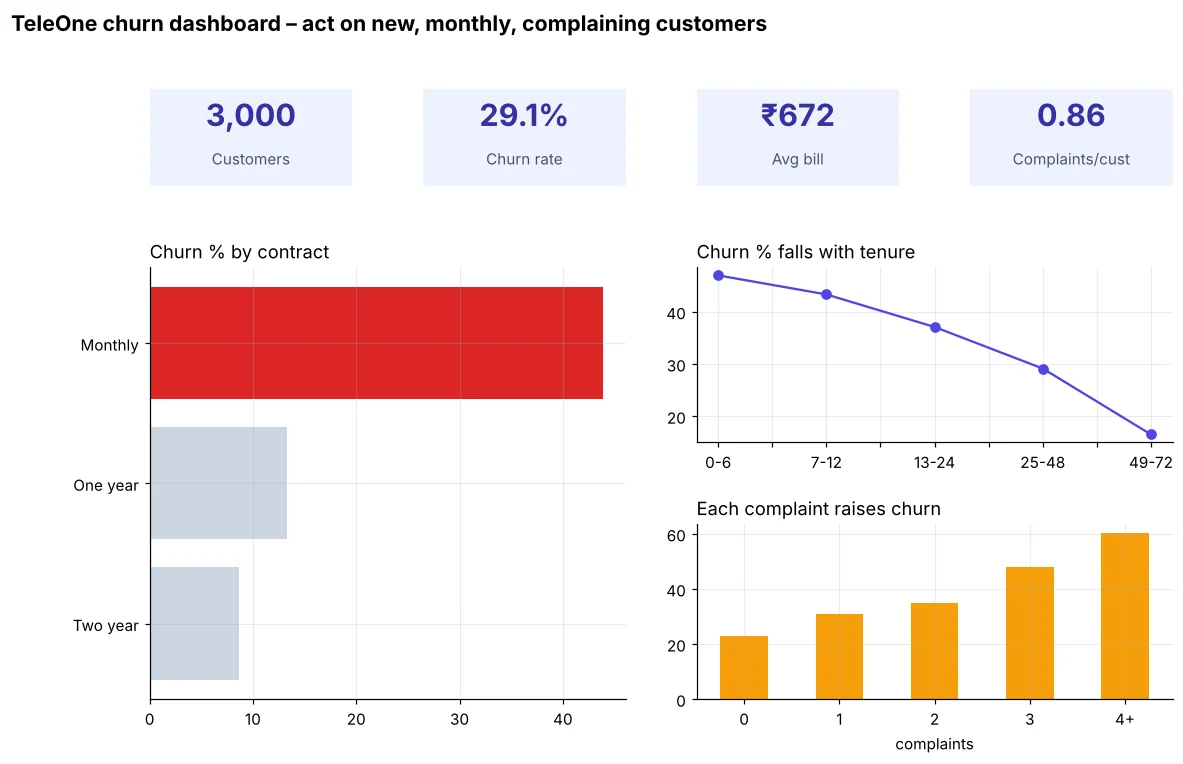
काम करने वाली headlines
कमज़ोर (topic)
- Churn by contract
- Monthly revenue 2024
- Ratings analysis
मज़बूत (finding)
- Monthly plans 5× ज़्यादा churn
- Oct–Nov ने 2024 का 27% revenue कमाया
- Power banks को सबसे ज़्यादा 1–3 star ratings
अगर CEO के साथ एक slide और एक मिनट होता, तो उसमें क्या लिखते? पहले वही लिखें – फिर सिर्फ़ वही charts बनाएँ जो उसका समर्थन करें।
🏅 आज के Job Skills
Practice tasks
🏋️ Practice – ख़ुद करें
Solution देखें
import pandas as pd, matplotlib.pyplot as plt
s = pd.read_csv("sales_data.csv")
s["revenue"] = s["quantity"] * s["unit_price"] * (1 - s["discount"])
c = (s.groupby("category")["revenue"].sum() / s["revenue"].sum() * 100).sort_values()
fig, ax = plt.subplots(figsize=(7, 3.2))
b = ax.barh(c.index, c, color=["#cbd5e1"] * 4 + ["#4f46e5"])
ax.bar_label(b, labels=[f"{v:.0f}%" for v in c], padding=3)
ax.set_title("Electronics alone brings over half of revenue", loc="left"); ax.set_xticks([])
ax.spines[["top", "right", "bottom"]].set_visible(False); plt.show()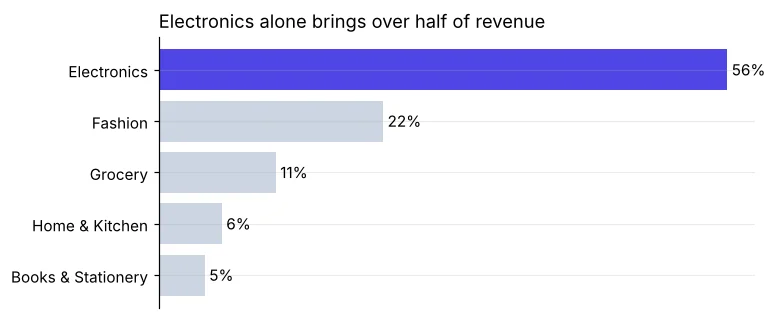
Quick quiz
🧠 Quick Quiz – ख़ुद को जाँचें
Interview corner
💼 Interview Corner
Non-technical audience को findings कैसे present करते हैं?
Method नहीं, जवाब से शुरू करें: number वाली एक headline, rupees में business impact, सुझाया गया action, और दो-तीन साफ़ charts। Technical details appendix में और p-value जैसे jargon से बचें जब तक पूछा न जाए।
अच्छा dashboard क्या बनाता है?
साफ़ उद्देश्य और audience, ऊपर KPIs, सबसे ज़रूरी chart सबसे बड़ा और ऊपर-बाएँ, एक जैसे रंग, ज़रूरत पर ही filters, और तेज़ load। कम charts, हर एक किसी सवाल का जवाब।
सारांश
- Context → insight → impact → action।
- फ़ालतू हटाएँ, sort करें, एक चीज़ highlight करें, finding वाले titles।
- Insights की rupee value निकालें और assumptions बताएँ।
- Dashboard: KPI row, मुख्य chart बड़ा, समर्थन वाले छोटे।
Day 25: Mini project – पूरी visual report के साथ student performance analysis।
