📈 Unit 1 – Data Visualisation · Lesson 16
Matplotlib: Line और Bar Charts
Data visualisation क्या है?
Data visualisation मतलब data को चित्रों – charts और graphs – के रूप में दिखाना ताकि patterns एक नज़र में दिखें। Python की Matplotlib library इन्हें बनाती है; इसका pyplot module plt नाम से import होता है।
Command prompt
pip install matplotlib
pyplot basics
- 1import matplotlib.pyplot as plt
- 2x और y data तैयार करें (lists, Series)
- 3Chart function बुलाएँ: plot(), bar(), hist(), pie()
- 4Title, labels, legend जोड़ें
- 5दिखाने के लिए plt.show() या save के लिए plt.savefig()
Line chart
Python
import matplotlib.pyplot as plt
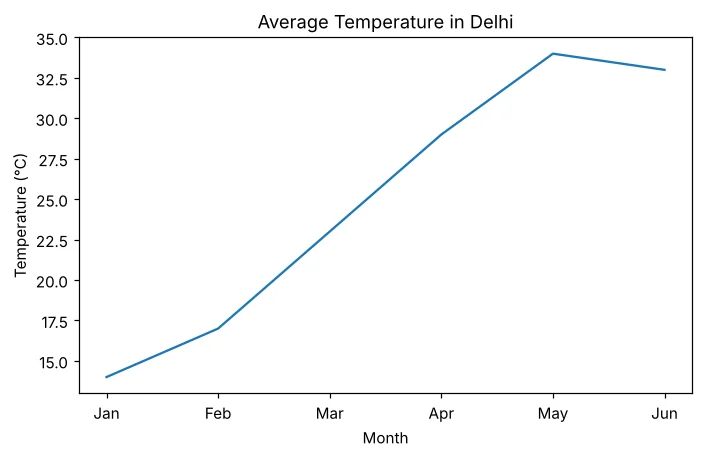
months = ['Jan', 'Feb', 'Mar', 'Apr', 'May', 'Jun']
temp = [14, 17, 23, 29, 34, 33]
plt.plot(months, temp)
plt.title('Average Temperature in Delhi')
plt.xlabel('Month')
plt.ylabel('Temperature (°C)')
plt.savefig('line_basic.png')
print('Chart saved')
Chart saved
Plot customise करना
Python
import matplotlib.pyplot as plt
months = ['Jan', 'Feb', 'Mar', 'Apr', 'May', 'Jun']
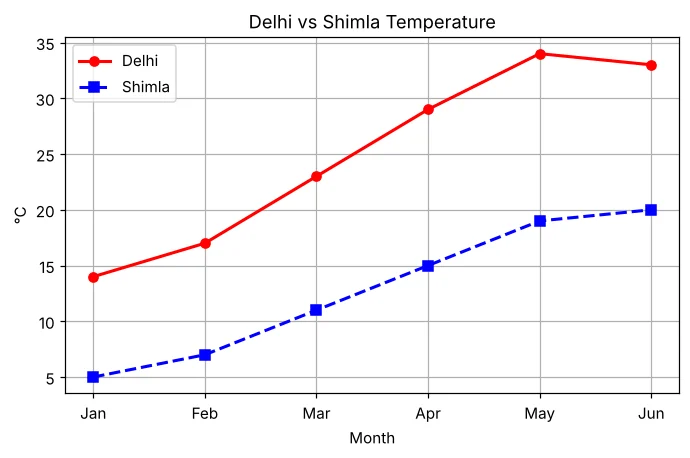
delhi = [14, 17, 23, 29, 34, 33]
shimla = [5, 7, 11, 15, 19, 20]
plt.plot(months, delhi, color='red', marker='o', linestyle='-', linewidth=2, label='Delhi')
plt.plot(months, shimla, color='blue', marker='s', linestyle='--', linewidth=2, label='Shimla')
plt.title('Delhi vs Shimla Temperature')
plt.xlabel('Month'); plt.ylabel('°C')
plt.legend()
plt.grid(True)
plt.savefig('line_custom.png')
print('Chart saved')
Chart saved
Bar chart
Python
import matplotlib.pyplot as plt
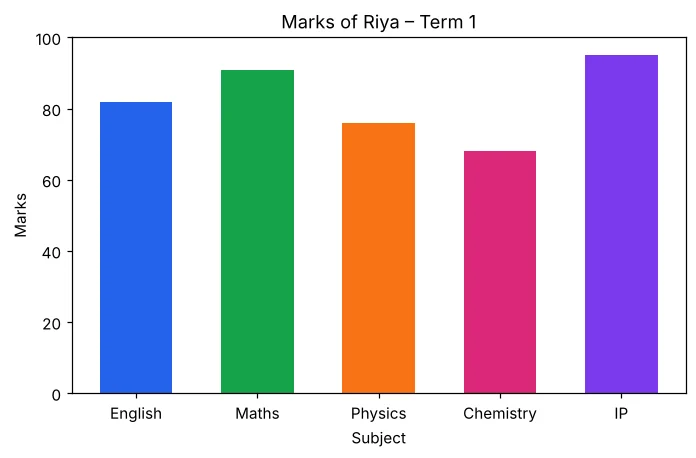
subjects = ['English', 'Maths', 'Physics', 'Chemistry', 'IP']
marks = [82, 91, 76, 68, 95]
plt.bar(subjects, marks, color=['#2563eb', '#16a34a', '#f97316', '#db2777', '#7c3aed'], width=0.6)
plt.title('Marks of Riya – Term 1')
plt.xlabel('Subject'); plt.ylabel('Marks')
plt.ylim(0, 100)
plt.savefig('bar_basic.png')
print('Chart saved')
Chart saved
Multiple bar chart
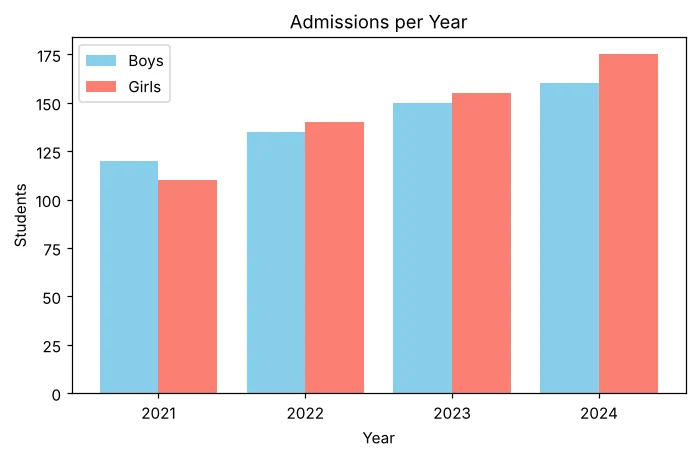
हर x position के बाएँ-दाएँ bars खिसकाएँ ताकि दो series साथ-साथ दिखें।
Python
import matplotlib.pyplot as plt
import numpy as np
years = ['2021', '2022', '2023', '2024']
boys = [120, 135, 150, 160]
girls = [110, 140, 155, 175]
x = np.arange(len(years))
plt.bar(x - 0.2, boys, width=0.4, label='Boys', color='skyblue')
plt.bar(x + 0.2, girls, width=0.4, label='Girls', color='salmon')
plt.xticks(x, years)
plt.title('Admissions per Year'); plt.xlabel('Year'); plt.ylabel('Students')
plt.legend()
plt.savefig('bar_grouped.png')
print('Chart saved')
Chart saved
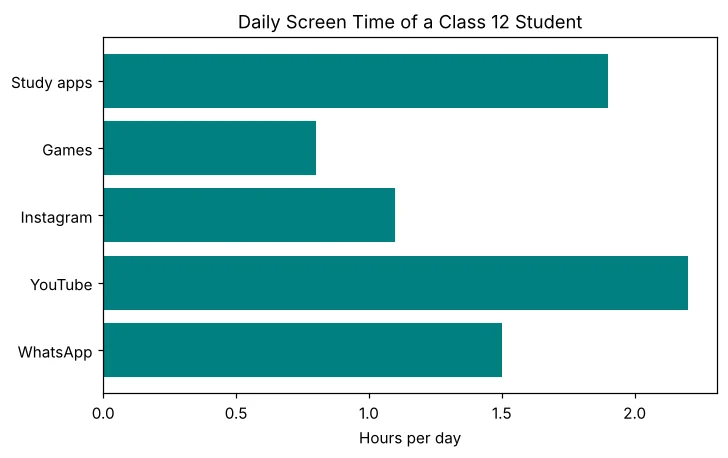
Horizontal bar chart
Python
import matplotlib.pyplot as plt
apps = ['WhatsApp', 'YouTube', 'Instagram', 'Games', 'Study apps']
hours = [1.5, 2.2, 1.1, 0.8, 1.9]
plt.barh(apps, hours, color='teal')
plt.title('Daily Screen Time of a Class 12 Student')
plt.xlabel('Hours per day')
plt.savefig('barh.png')
print('Chart saved')
Chart saved
DataFrame columns plot करना
Python
import pandas as pd
import matplotlib.pyplot as plt
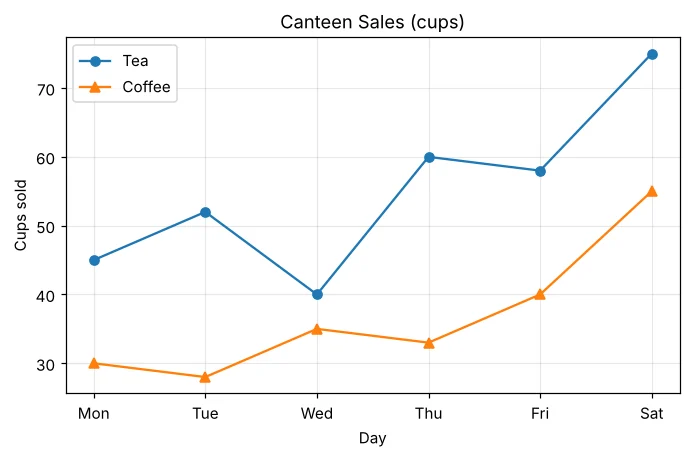
df = pd.DataFrame({'Day': ['Mon', 'Tue', 'Wed', 'Thu', 'Fri', 'Sat'],
                   'Tea': [45, 52, 40, 60, 58, 75],
                   'Coffee': [30, 28, 35, 33, 40, 55]})
plt.plot(df['Day'], df['Tea'], marker='o', label='Tea')
plt.plot(df['Day'], df['Coffee'], marker='^', label='Coffee')
plt.title('Canteen Sales (cups)'); plt.xlabel('Day'); plt.ylabel('Cups sold')
plt.legend(); plt.grid(alpha=0.3)
plt.savefig('line_from_df.png')
print('Best tea day:', df.loc[df['Tea'].idxmax(), 'Day'])
Best tea day: Sat
Parameters का सारांश
| Function / parameter | Use |
|---|---|
| plt.plot(x, y) | Line chart |
| plt.bar(x, h) / plt.barh(y, w) | Vertical / horizontal bars |
| title(), xlabel(), ylabel() | Text on the chart |
| color / c | 'red', 'b', '#16a34a'… |
| marker | 'o' circle, 's' square, '^' triangle, '*' star |
| linestyle / ls | '-' solid, '--' dashed, ':' dotted, '-.' |
| linewidth / lw, width | Line thickness / bar width |
| label + legend() | Key that names each series |
| grid(), xticks(), ylim() | Grid lines, tick labels, axis range |
| savefig(), show() | Save to file / display |
अक्सर पूछे जाने वाले प्रश्न (FAQ)
plt.show() और plt.savefig() में क्या फ़र्क है?
show() chart को window में खोलता है; savefig("file.png") उसे image file के रूप में save करता है। savefig को show से पहले लिखें।
Line chart कब और bar chart कब?
समय के साथ बदलाव (trend) के लिए line chart। अलग-अलग categories की तुलना के लिए bar chart।
Legend ख़ाली क्यों है?
legend() वही label= दिखाता है जो plot() या bar() में दिया हो। label न हो तो दिखाने को कुछ नहीं।
